 LevelZMOD
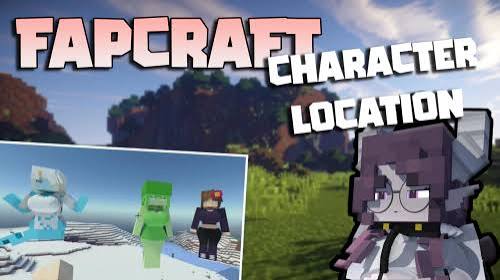
A LevelZ safe-download check starts by confirming what you are downloading. A Minecraft thumbnail, a copied mod name or a large download button is not enough to identify the correct project and release.
This guide gives you a repeatable verification process without promising that any changing file service is risk-free. The supplied picture advertises a different mod and illustrates why artwork should not be treated as project identity.
Confirm the project identity
Inspect the project name, credited author and the file listing together. Search snippets and copied thumbnails can mix unrelated content.
The official LevelZ project page credits Globox_Z. Use the actual project listing to examine files instead of trusting a generic page offering every mod under the same download instructions.
Select the intended game file
Match the environment
Check the Minecraft version and loader for the file you choose. A release for a different environment is not made compatible by placing it in your mods folder.
Also distinguish a full modpack from an individual mod. A pack can supply custom configuration and dependencies that a single JAR does not reproduce.
Check dependencies before launch
Review the requirements associated with the release and obtain compatible files. Use our installation guidance to organise the setup.
Keep the file names and published version details in a short note. This makes future troubleshooting possible without guessing which download you used.
Inspect what the destination asks you to do
A legitimate need to choose a file is different from a demand for unrelated software or private account information. If a destination asks for an unexpected installer, password or browser change, stop and evaluate the request rather than following it automatically.
A download link on this information website may lead to a separate provider. That provider controls its own account features and delivery systems. Always inspect the destination you have reached.
A practical verification checklist
- Confirm the project and credited author.
- Open the file's own details rather than trusting only a banner.
- Match the Minecraft version and loader.
- Check required dependencies.
- Save the downloaded file without renaming its compatibility labels.
- Keep important worlds backed up before changing the installation.
- Test in a separate profile before adding the file to a valued setup.
This checklist reduces avoidable mistakes. It is not a malware scan or a guarantee about every external file.
Keep installation and downloading distinct
Downloading a JAR does not install a loader, launch a compatible profile or validate your modpack. The Fabric player documentation describes placing compatible mods in the appropriate mods directory.
Use a dedicated test profile if you are unsure. A controlled setup lets you confirm the selected files without altering an established world.
Watch for misleading evidence
A screenshot from another mod can be useful in an article about comparisons, but it cannot demonstrate that a file contains LevelZ. Similarly, a file extension alone does not prove authorship or compatibility.
Do not infer that a site has permission to redistribute every asset because the mod's code is open source. Code and artwork can have different licence conditions. Check the project's licence notes before redistributing anything yourself.
Download questions
Is every site with a LevelZ keyword an official source?
No. Confirm the actual project identity and destination.
Does a high download count prove the file matches my setup?
No. Version and loader details still matter.
Should I run an unrelated installer to obtain a mod?
Do not assume that step is necessary. Compare the process with the relevant platform's documentation.
What if a verified file does not load?
Use the installation troubleshooting guide to check the active profile and exact error before changing saved data.